





In this guide, we cover settings and recommendations that help resolve lag and stutter issues in Arknights: Endfield.
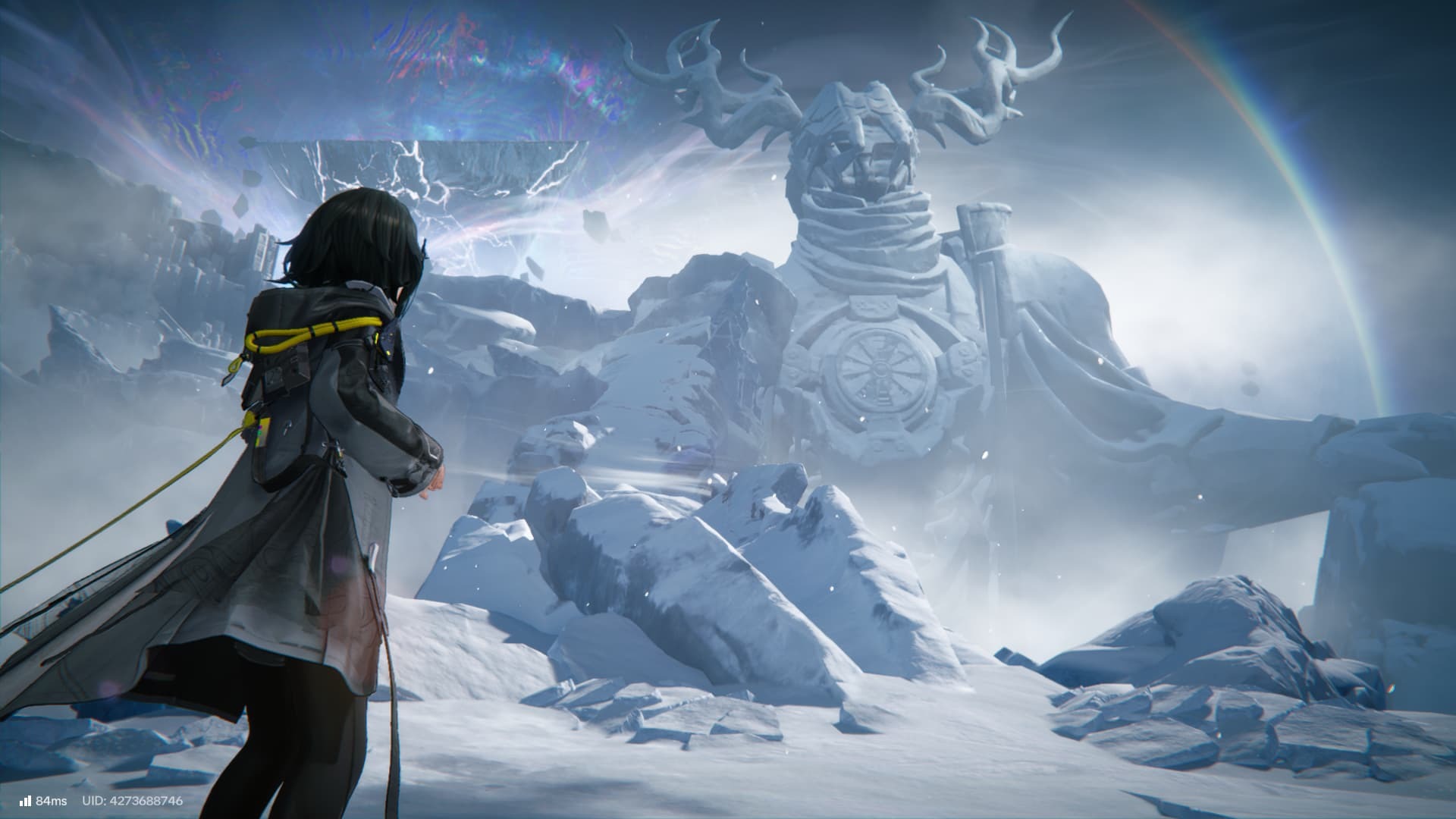
Arknights: Endfield is a fairly optimised game that runs great on even older systems and devices, thanks to its non-seamless open world approach that games like Genshin Impact, Wuthering Waves and others have.
However, there are still below recommendation devices and systems, using wrong settings, not enabling 60 or 120 FPS and a few other things that could result in low FPS and overall lag and stutter issues.
Seeing that, we prepared this handy guide covering some basic recommendations and settings that you can implement to reduce lag and stutter issues in the game.
Fixing Lag And Stutter Issue In Arknights: Endfield
Here is how you can improve the game's performance:
Using Vulkan or DirectX 11 Accordingly
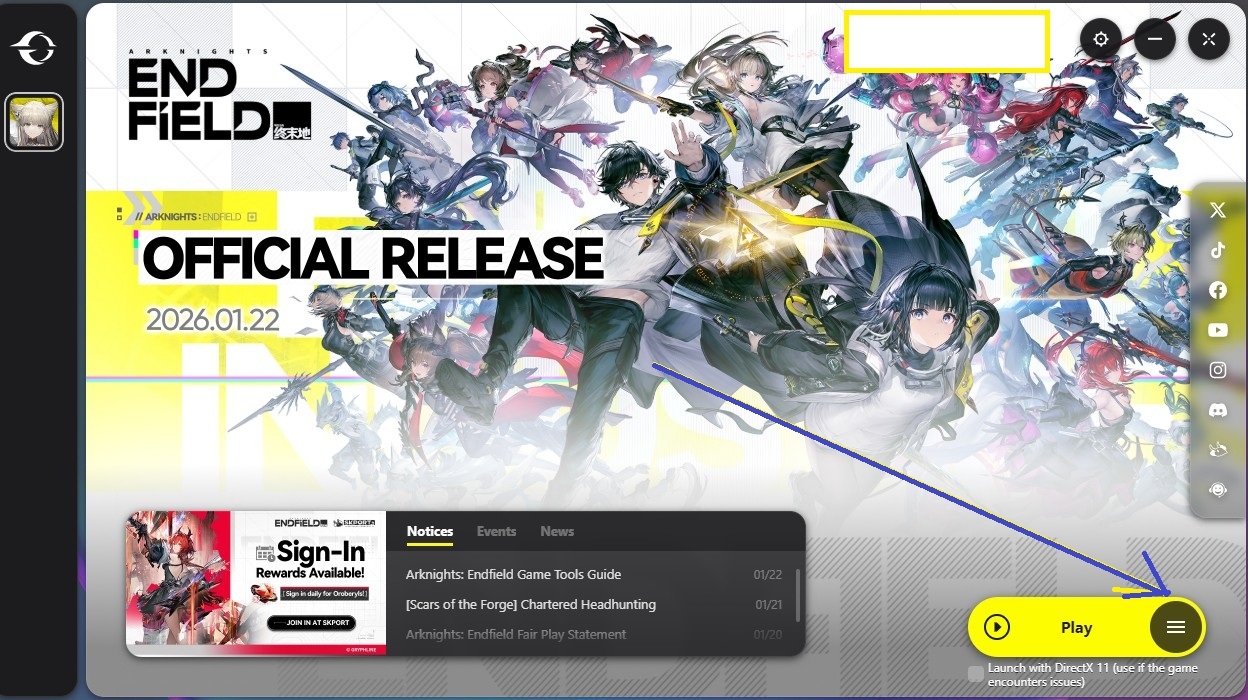
If you are playing Arknights: Endfield on PC and are encountering issues like a black screen, inconsistency in performance and such things, click on the '☰' next to the 'Play' button.
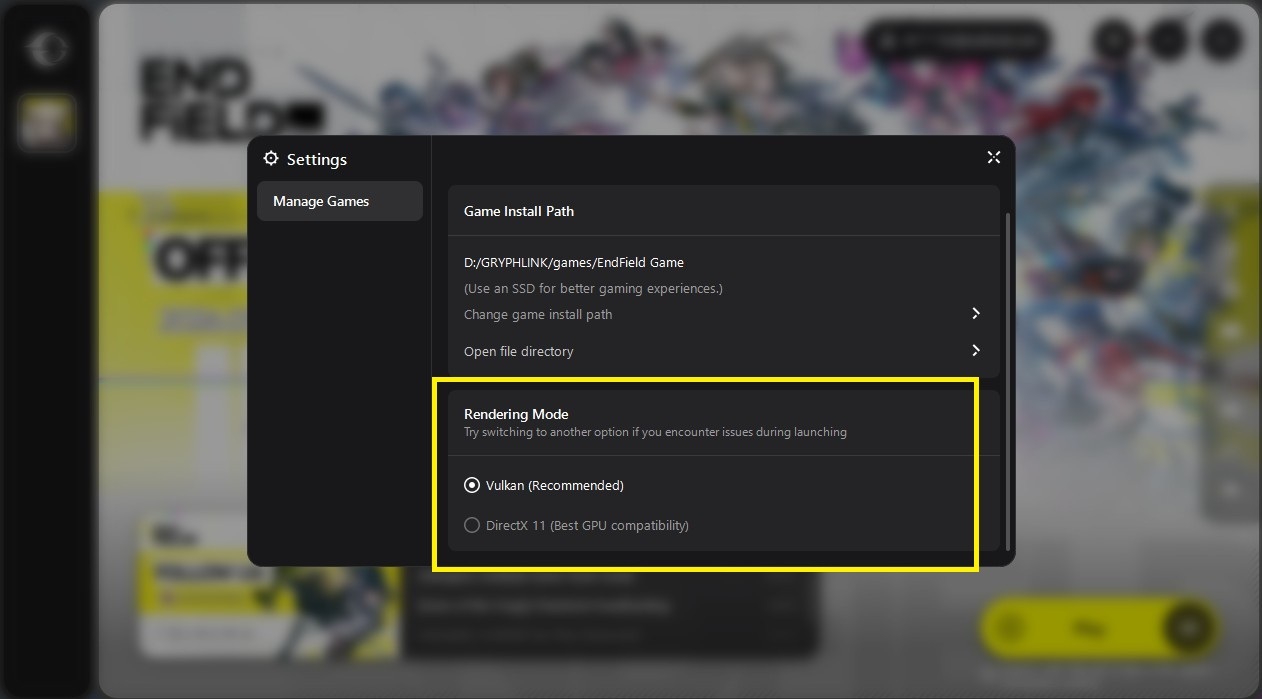
In the Rendering Mode field, check the DirectX 11 option. You can also do it via the check mark option available below the Play button in the launcher, saying "Launch with DirectX."
Installing the game on an SSD
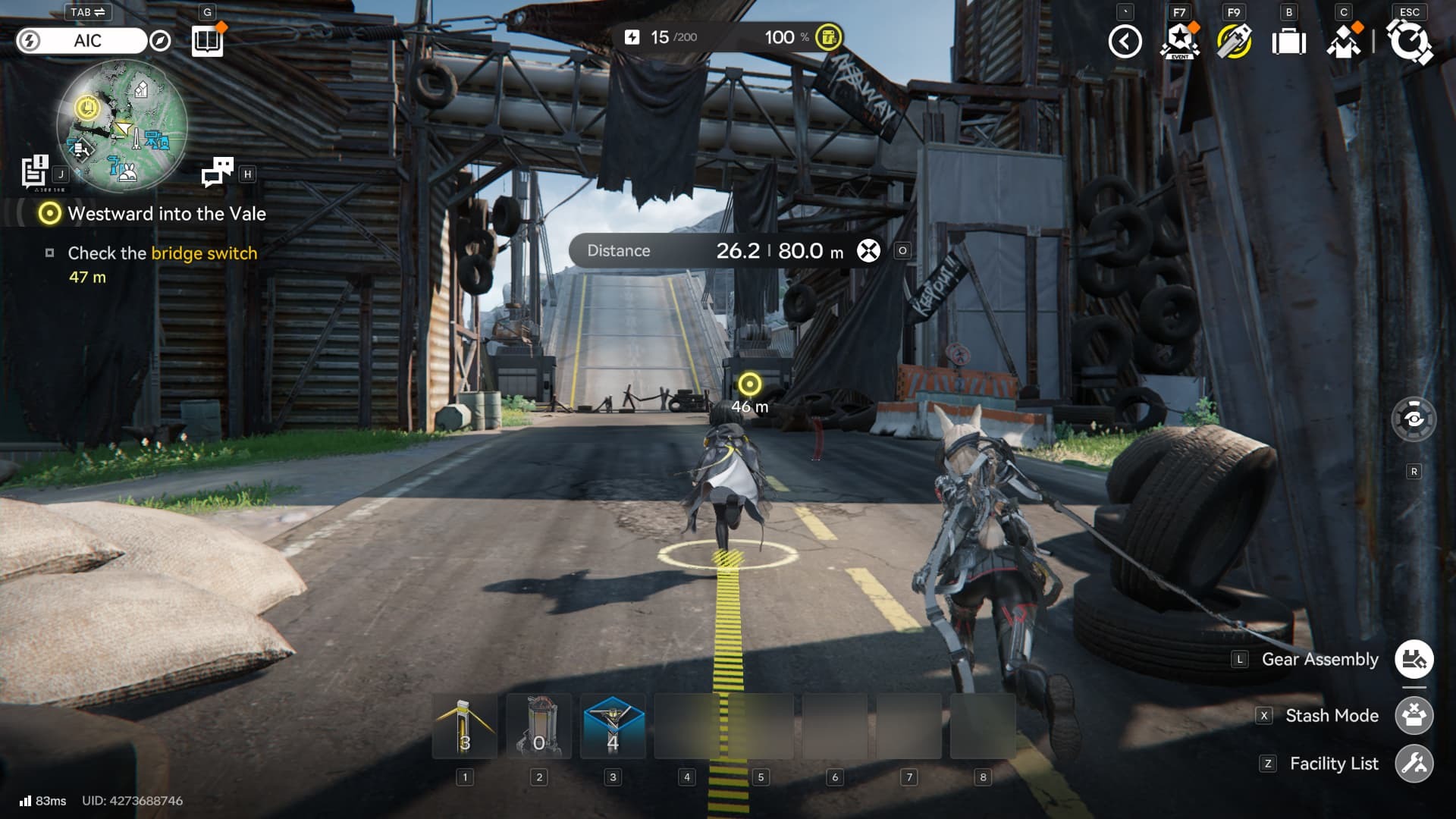
Arknights: Endfield, like every other game released in the past few years and the upcoming ones, recommends players install the game on an SSD.
Doing so allows the game to load assets a lot quicker, avoiding texture pop-in issues and stutters, impacting the game's performance in some manner.
Enabling 120 FPS
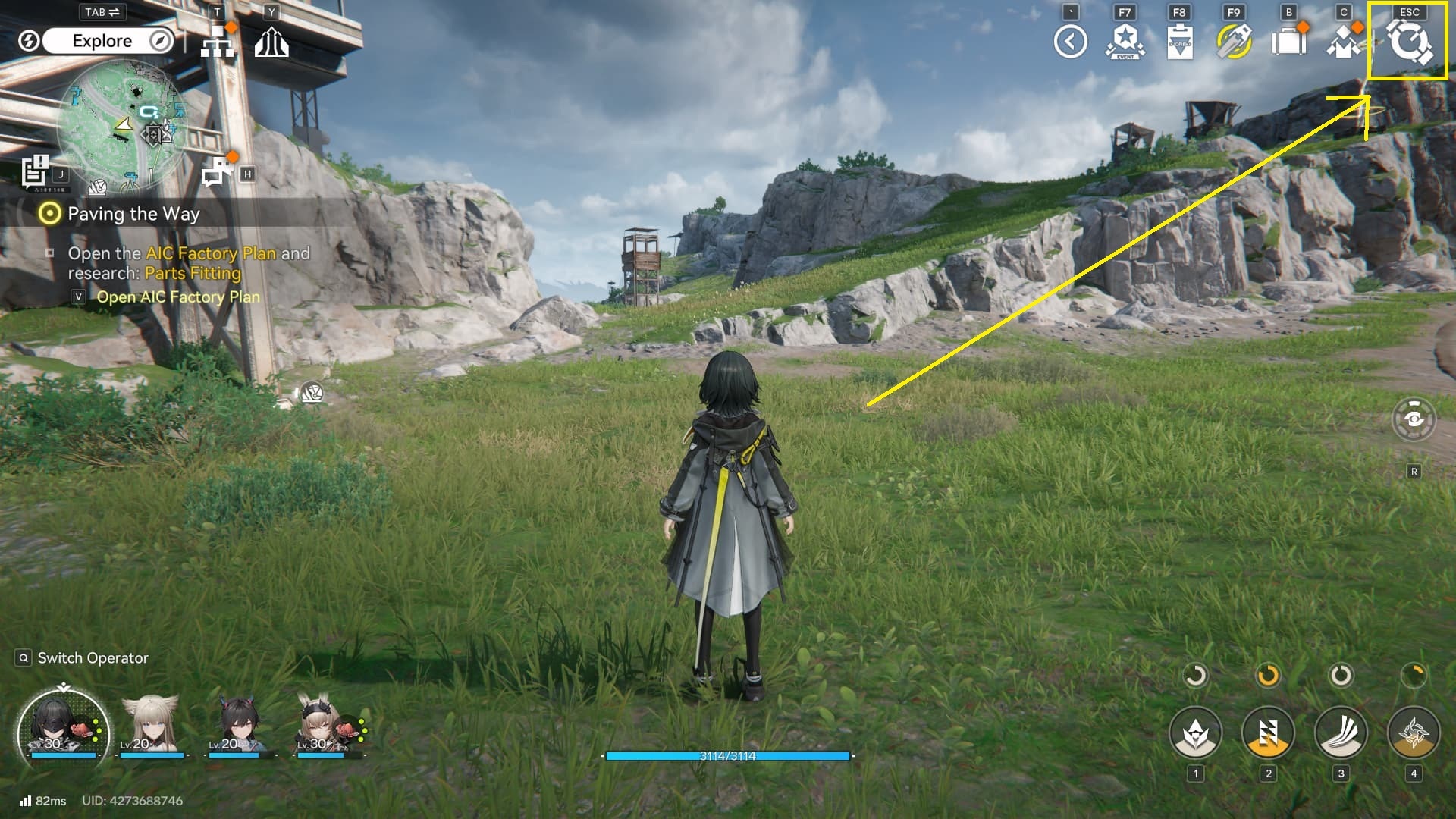
By default, your FPS limit in Arknights: Endfield is set to 30 FPS, and that is why, when you play the game for the first time, you will find it laggy even though you have a good system.
To enable 120 FPS, head to Settings. First, click on the Watch icon found at the top right side of the game screen.
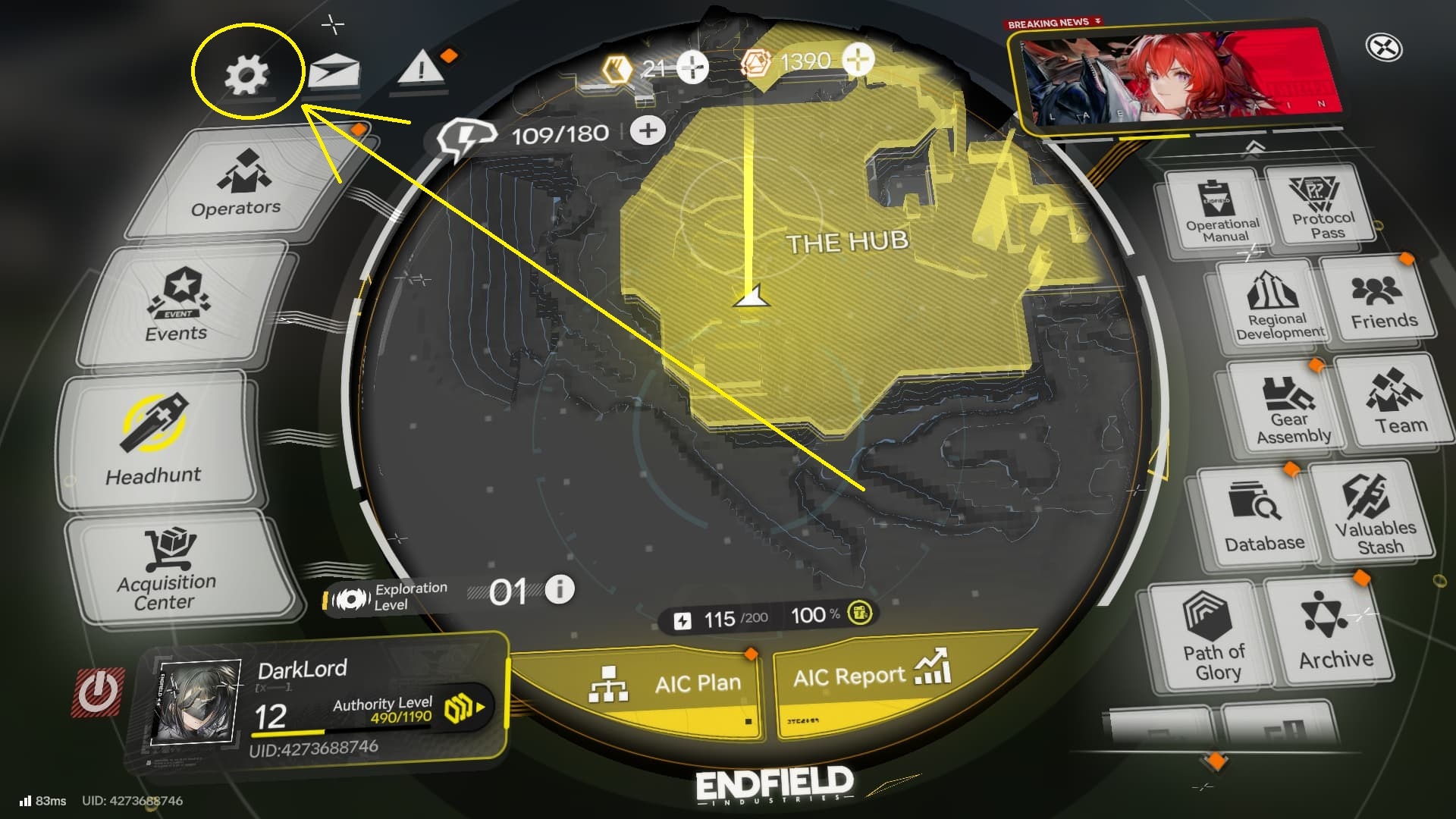
After that, click on the ⚙️ icon found at the top left side of the main menu.
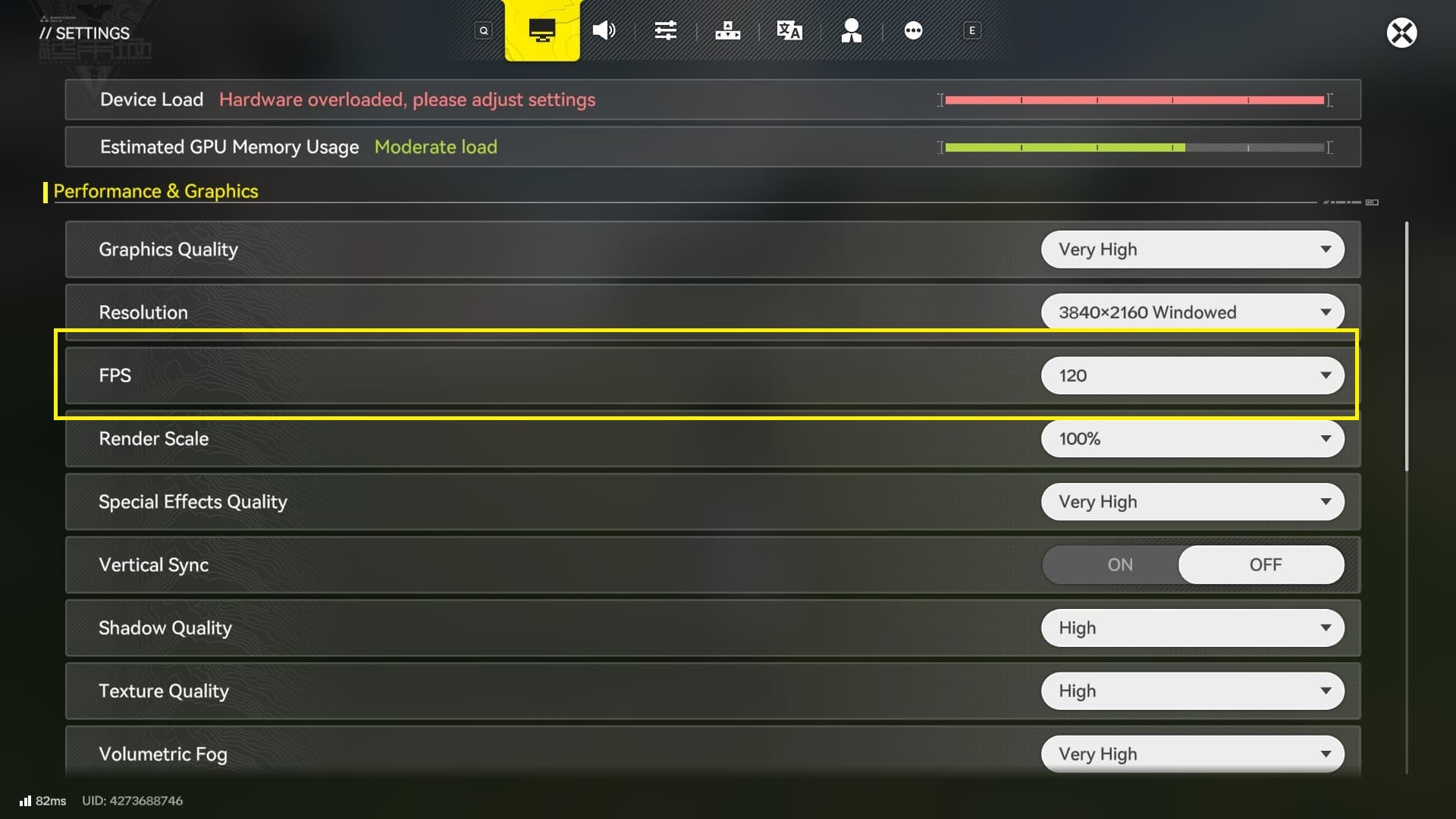
In Settings, under 'Performance & Graphics,' you will find the FPS option. Set it to 120. It increases the Device Load by a lot. But don't worry. We tested on multiple systems and didn't encounter overheating issues.
However, if your device is underpowered, make sure to keep track of the system temperature and lower the FPS to 60 if needed.
Opting for the Best Graphics Settings
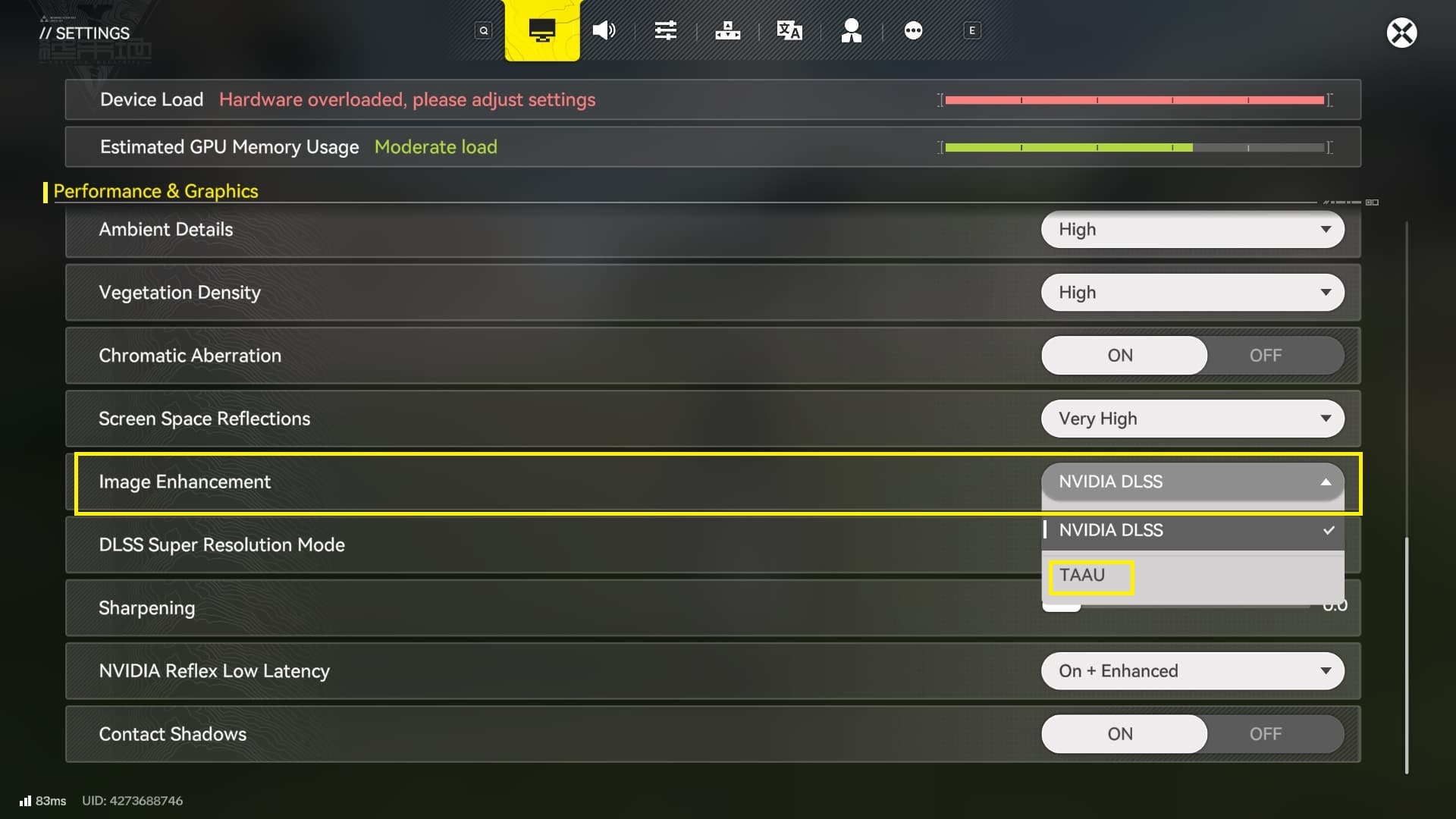
The biggest performance improvement you can get in Arknights: Endfield is by setting your Graphics Settings as per your hardware and using the DLSS options.
Depending on your device's specification, whether you are on mobile or PC, choose the graphics options that matter and turn down the rest.
If you are on PC, by default, the Image Enhancement is set to TAAU. Set it to Nvidia DLSS, and then under DLSS Super Resolution Mode, either opt for Quality or Performance.