



In this guide, we share some of our recommended settings that you can use to optimize The Division Resurgence's performance while keeping that high quality graphical fidelity.
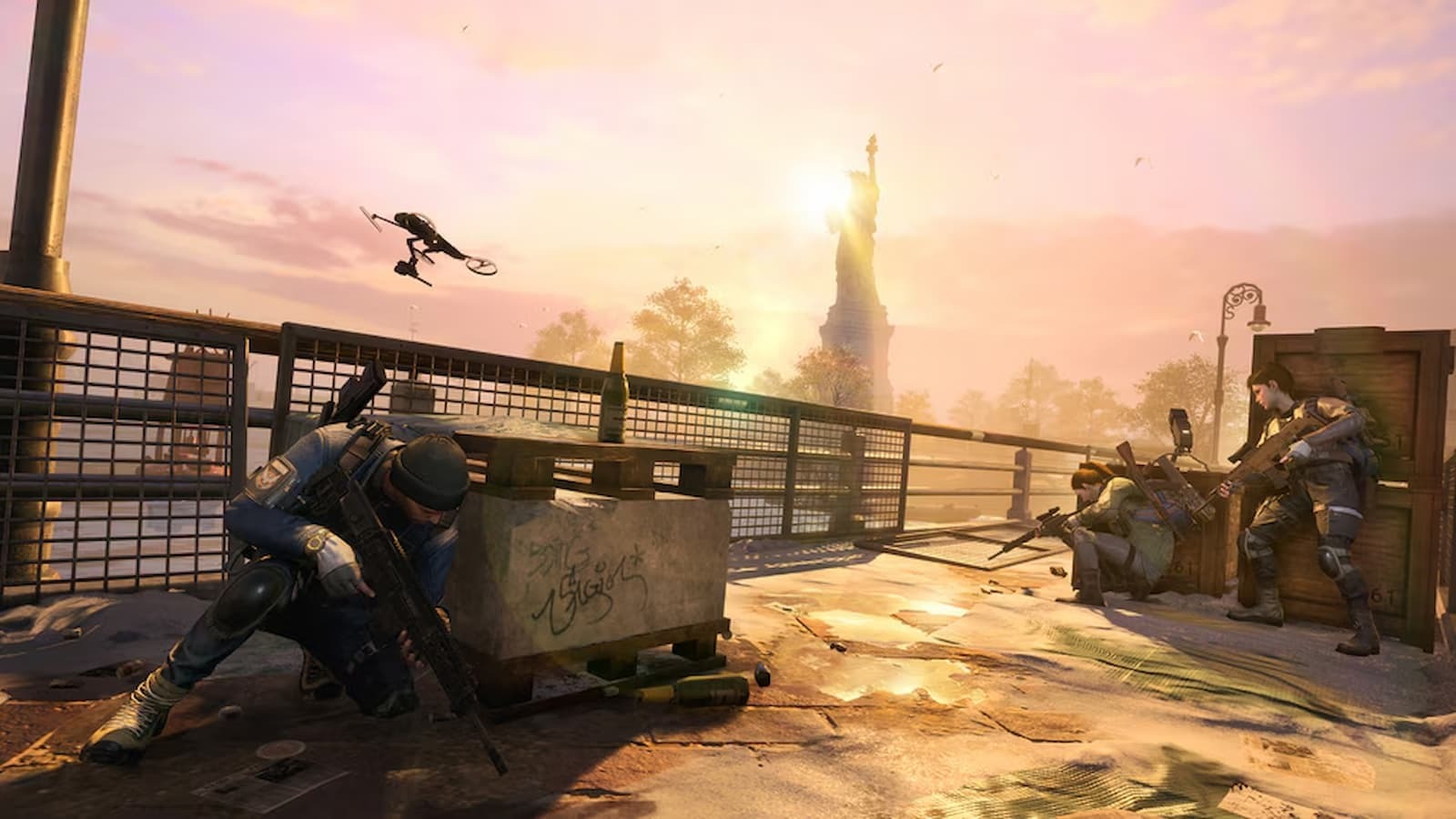
The Division Resurgence is a high-fidelity third-person looter shooter and the latest entry in Ubisoft’s popular and long-running The Division franchise that, despite being a mobile-first title, is a demanding game that you can run on lower -or mid-end devices only when you use the right settings.
Thankfully, the game offers a decent variety of graphic options that you can tweak to find that perfect mix of Fidelity vs FPS. If you are feeling confused about the graphics settings, we are here to help.
How to Access Graphics Settings in The Division Resurgence
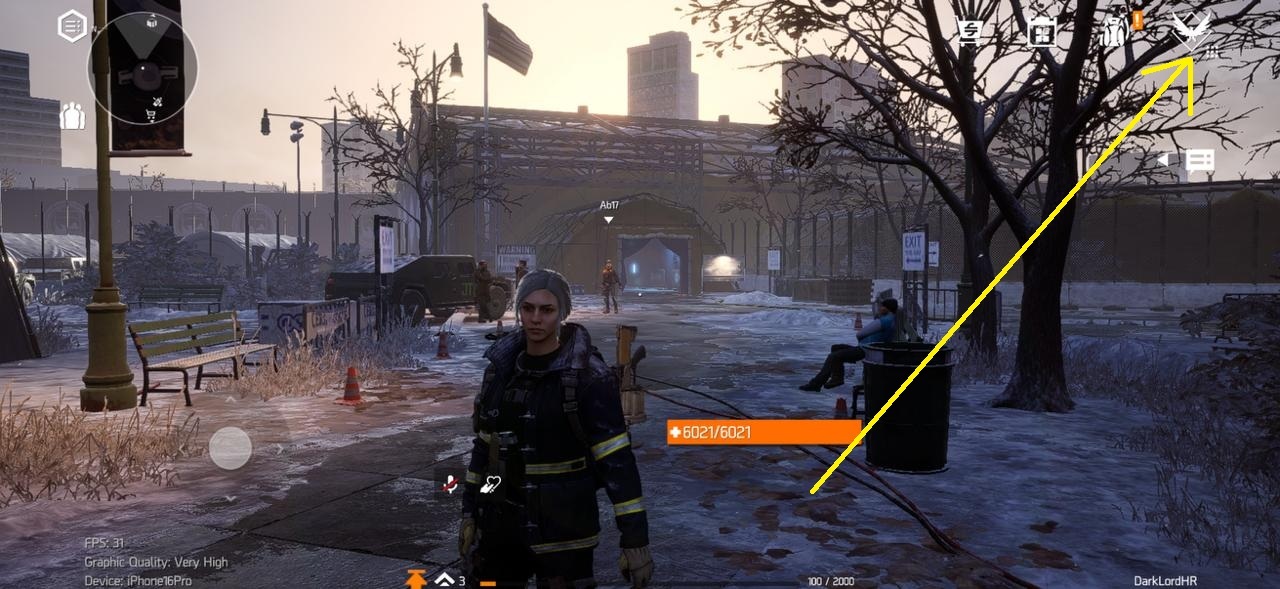
To access and change your graphics settings in The Division Resurgence, you must first progress through the game until you unlock the Camp Hudson hub area.
After that, you must click on the ‘SHD’ icon found at the top right side of the game screen.
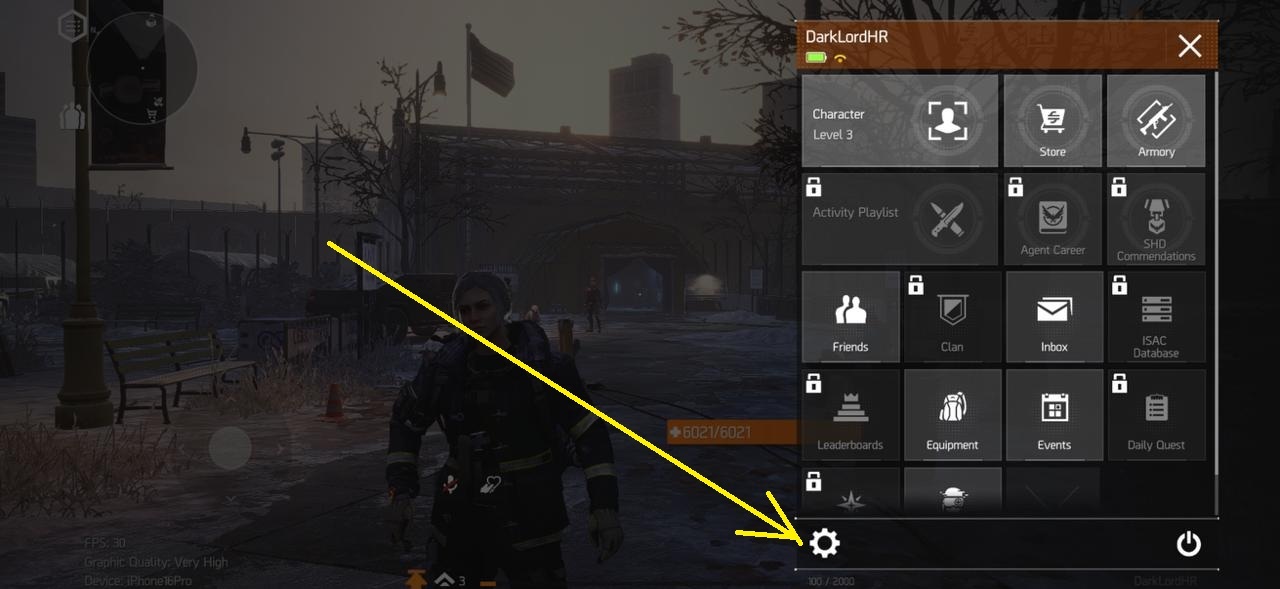
Now, click on the ⚙️ icon found at the bottom of the main menu.
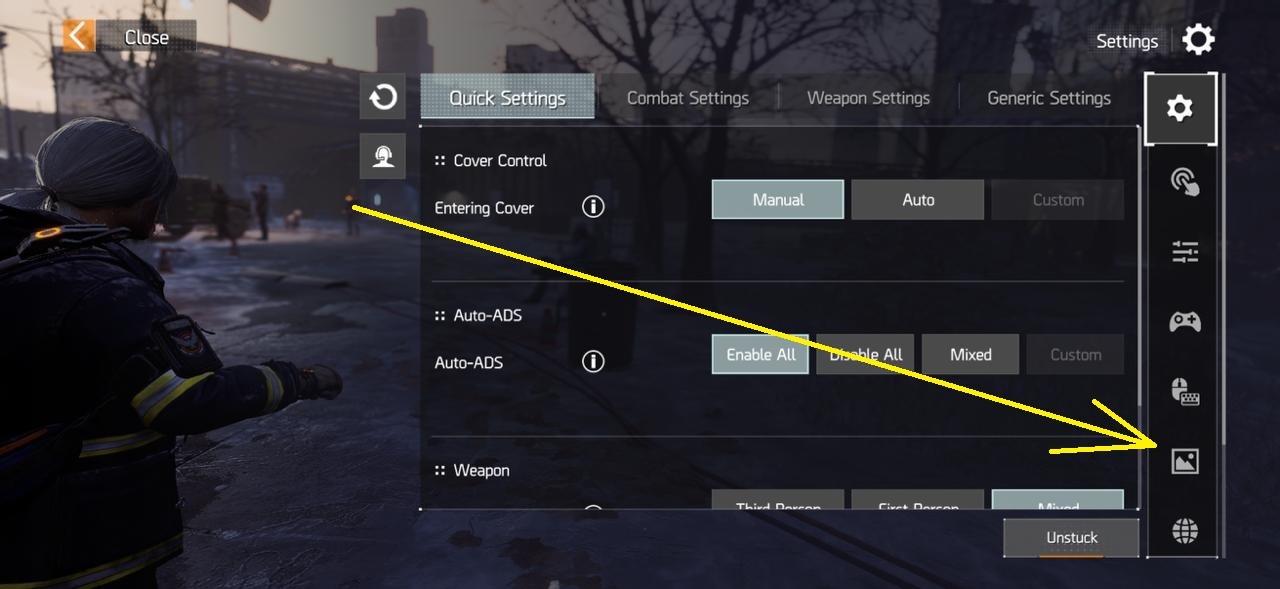
Once done, click on the ‘Picture’ icon found in the side menu.
Best Graphics Settings for High FPS in The Division Resurgence
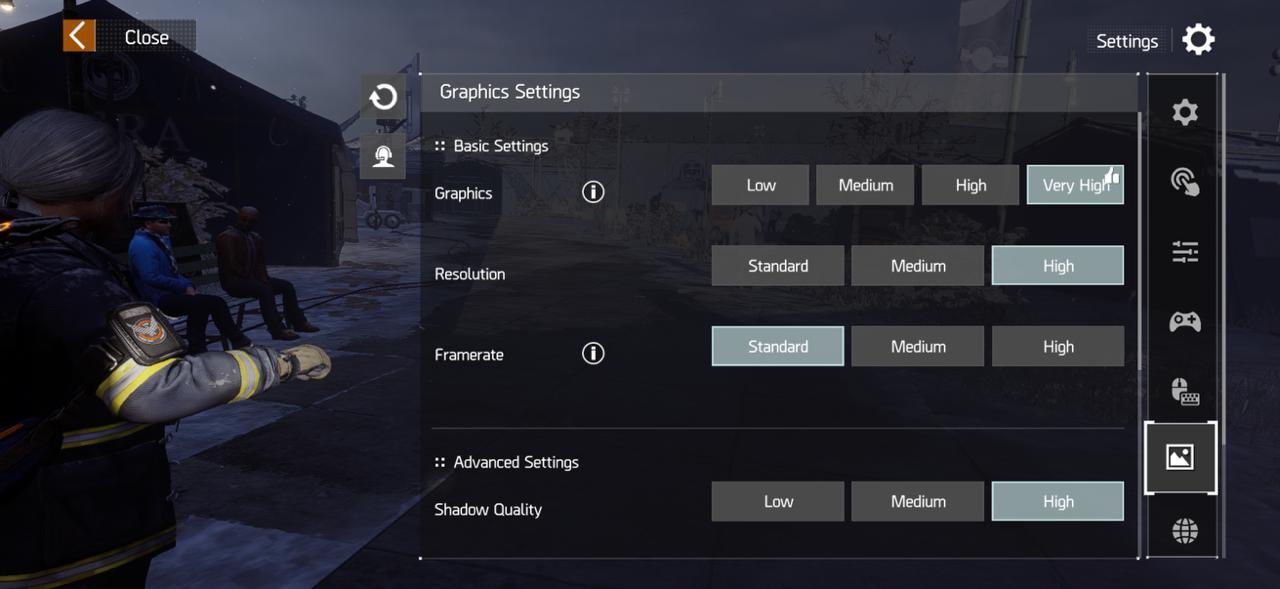
The Division Resurgence offers three FPS modes. These are:
- 30 FPS, Max Settings
- 45 FPS, Medium Settings
- 60 FPS, Low Settings
Depending on your device and requirements, you must adjust your graphics settings.
Now, if you are on a low or mid-end device, we recommend setting the Graphics to Low or Medium.
Doing so will force the Resolution option to ‘Standard’ and will allow you to choose the ‘High’ Framerate option.
Now, here’s the catch: changing Graphics to Low or Medium will drastically reduce the game’s graphical fidelity.
Even if you go for the ‘Medium’ Framerate option and select ‘High’ Graphics, the game will look blurry. And no! Sadly, there’s no fix to it.
However, this setting choice does keep the vegetation and such assets that populate the world. So, while it is blurry in terms of detail, it’s better than Low or Medium settings.
So the choice is yours. You either go for Low or Medium Graphics with High Framerate or High Graphics with Medium Framerate.
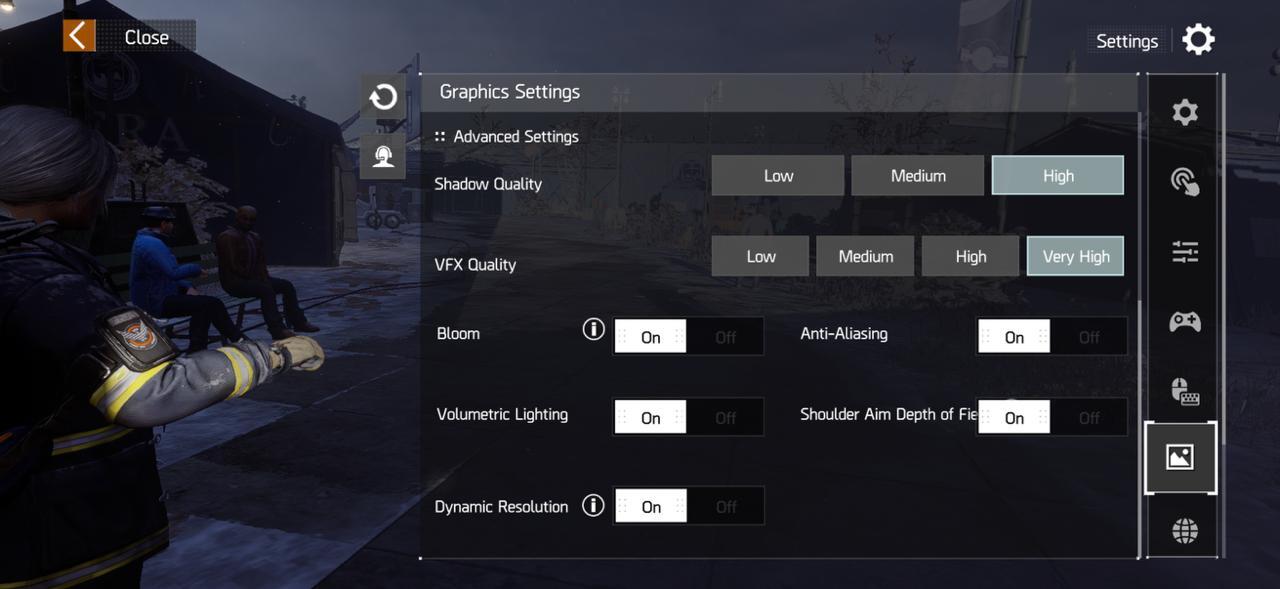
The remaining Graphics Settings don't affect your performance. So enable them and set them to their max value.
- Shadow Quality: High
- VFX Quality: Very High
- Bloom: On
- Volumetric Lighting: On
- Anti-Aliasing: On
- Shoulder Aim Depth of Field: On
- Dynamic Resolution: On